GIS Help
You can obtain a political maps of NYS at the Geospacial Information System website. The site is not particularly user friendly and their documented GIS Help is complicated, but below are General Instructions and Examples that will help. Use on a laptop for best results.
| General Instructions:
Click Here to access website -> Geospacial Information System
Apply the following steps to the examples provided below.
Step 1: Click and Clear default settings for Layers and Add Data.
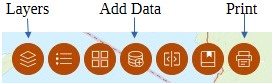 |
Step 2: Click Add Data to search/select the type data you want to view.
After the option(s) are added (+), click Done at the bottom and close the window.
The options will be checked under Layers. |
Step 3: Click Layers to choose additional options and customize your map.
HINT: When you tap on an area in the map you create, a pop up window appears with attributes of the area.
Attributes can be referenced to specify filters. |
Step 4: Click Print to save your map.
Click the Print Template column, select a Template (page orientation) and enter a Title.
Check Show print area box and adjust your map in the space provided. Click Print.
Click the Results column to display and download map.
Contact us if you need any help. |
Note: Clear all Layer and Add Data settings before each Example
Example 1: Election District 187 in Brookhaven Municipality in Suffolk County
- Click Add Data and “+”
- Search and select “NYS Elections Districts and Polling Locations”
- Click Done and close window
- Click Layers icon.
- “NYS Elections Districts and Polling Locations” is checked
- Click dropdown, uncheck all except Election Districts.
- Click the 3 dots next to Election Districts
- Click “Set filter”
- Click/turn on toggle switch at top of Set filter window
- Click (+) Add clause: Election District is Brookhaven ED #187
HINT: Filter Suffolk County ED by Municipality name and 3 digit ED
- Close Set filter window
- Close Layers window
Note: Modify filters to display other election districts.
|
Example 2: Election District 021 in AD 24, Queens County
- Same Steps as Example 1 except “Set filter” option:
- Click (+) Add Clause set: AND, County is Queens, Election District is 24021
HINT: Filter Queens ED by County name, 2 digit AD and 3 digit ED
|
Example 3: All Municipalities in Suffolk County
- Click Add Data and “+”
- Search and select “NYS Civil Boundaries”
- Click Done and close window
- Click Layers
- “NYS Civil Boundaries” is checked
- Click dropdown, uncheck all except Cities_Towns
- Click the 3 dots next to Cities_Towns
- Click “Set filter”
- Click/turn on toggle switch at top of Set filter window
- Add clause: County is Suffolk
- Close Set filter window
- Close Layers window
- Note: Modify filters to display other counties.
|
Example 4: All Election Districts in Suffolk County/Brookhaven Municipality
- Click Add Data and “+” (add Election Districts)
- Search and select “NYS Elections Districts and Polling Locations”
- Click Done and close window
- Click Layers icon
- “NYS Elections Districts and Polling Locations” is checked
- Click dropdown, uncheck all except Election Districts.
- Click the 3 dots next to Election Districts
- Click “Set filter” option (view Brookhaven election districts only)
- Click/turn on toggle switch at top of Set filter window
- Add a clause: Municipality is Brookhaven
- Close Set filter window
- Close Layers window
- Note: Modify filters to display other municipalities.
|
Example 5: All Election Districts in an Assembly District
Here’s a challenge. In Suffolk County, you can be a committee member for an Election District if it is within your Assembly District.
- Add Data (NYS Election Districts & Polling Locations)
- Layers
Check NYS Election District & Polling Locations
Click 3dots to set Transparency approx 70%
Click dropdown to check Election Districts
- Layers
Check NYS Legislative Districts
Click dropdown to check NYS Assembly Districts
Click 3dots to set filter: District is 2 – or your Assembly District#
- Zoom in to the Assembly District
|
Example 6: All Assembly Districts in a County
- Add Data: NYS Assembly DistrictsLayers
- Layers: NYS Assembly Districts is checked
- … Transparency 50%
- Layers: Check Administrative Boundaries – NYS Civil Boundaries – Counties
- … Set Filter – Add Clause – Name is (enter County name)
(Identify Assembly number range in County)
- Layers: NYS Assembly Districts
- … Set Filter – Add Clause set – District is between (number range)
|
Example 7: Coterminous AD 10 (Nassau & Suffolk)
- Add Data: NYS Civil Boundaries
- Layers: NYS Civil Boundaries, Counties, filter Name is Nassau OR Suffolk
- Layers: NYS Administrative Boundaries, NYS Civil Boundaries, Counties, filter Name is Nassau OR Suffolk
- Layers: NYS Legislative Districts, NYS Assembly Districts, filter District is 10
View Map
|